



Page contents
More information
ProjectWork MCP Connector
Project planning together with AI
AI assistant
ProjectWork and your AI assistant make the perfect combination.
Give your AI assistant, such as ChatGPT or Claude, instructions
to help you with project planning and progress retrieval,
without having to click through windows or sifting through tables.
During the planning phase, the assistant can compare the schedule against relevant uploaded documents.
During the execution phase, your assistant can make reports.
And there are many more possibilities for time saving and quality enhancing support.
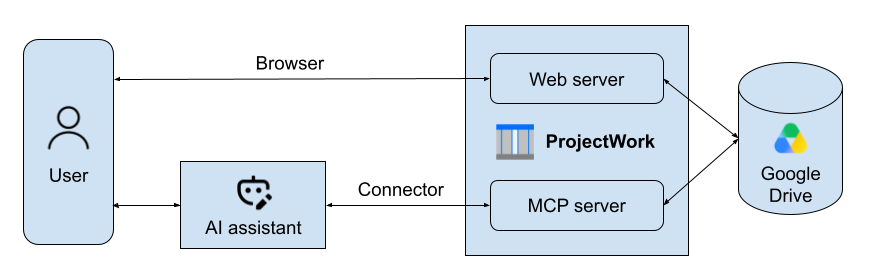
Connectors
An AI assistant can benefit from additional external capabilities offered through Connectors,
like an email application, file system and, in case of ProjectWork, project planning capabilities.
An AI assistant can have multiple connectors at once,
allowing for combined actions like, "mail project tasks which are overdue to the appropriate resources".
Google Drive
The AI assistant works in conjunction with the ProjectWork webapp
on the same project schedule files stored in Google Drive.
The initial registration, Google Drive authorization, trial start and license purchases are done in the webapp.
When you edit the schedule via the webapp, the AI can read this change as well and vice-versa.
When you change the view of the schedule through AI, the webapp will also show this.
Authentication
In order for the AI to have access to your schedules in Google Drive,
you authenticate with your Google sign-in when you connect ProjectWork to the AI assistant.
MCP server
To establish the AI connection, ProjectWork features an MCP server that is compatible with multiple AI assistants.
MCP (Model Context Protocol) is an open standard that avoids custom integration to a vendor specific API.
The interaction happens with predefined ProjectWork function tools that the AI assistant can call.
AI agent
The ProjectWork MCP server can also be part of an agentic AI framework, rather than an AI assistant.
This is a more autonomous approach, but still very interoperable using the same ProjectWork function tools.
Function tools
Find
These function tools find ProjectWork schedules in Google Drive:
-
Jump straight into your latest project
Ask "what's the status of my project?" and AI pulls up the file you last worked on — no need to specify which one. -
Search across all your schedules
Looking for a specific project? AI can search your ProjectWork files by name, owner, or creation and modification date.
Read
These function tools retrieve project data without changing it, to analyze, evaluate and report:
-
Get an instant project summary
Ask for an overview and get the essentials at a glance: owner, start and end dates, progress, budget, work hours, and task and resource counts. -
See your full task breakdown
AI can list every task in a schedule — names, dates, durations, dependencies, progress, and whether a task sits on the critical path. -
Request a Gantt chart
Your AI assistant can display the requested chart and adjust the layout and colors to your liking. You can also copy and download the chart for further editing yourself. -
Check your resource plan
Get a complete view of the people, equipment, and materials assigned to a project, including capacity, cost, and progress per resource. -
Spot overallocated resources before they become a problem
AI can flag resources that are scheduled beyond their capacity — whether it's a single task that's too heavy or several tasks that add up to more than a resource can handle. Catch scheduling conflicts before they slow your project down.
View
These function tools change the view of the schedule:
-
Filter your view on demand
Ask AI to show only the tasks that matter right now. The filter applies directly in the ProjectWork web app, visible to everyone sharing the schedule.
Write
These function tools change project data to create and update schedules: tbd.
Calculate
These function tools make calculations and change the schedule: tbd.
How to connect
Connecting ProjectWork in Claude:
- Sign in to Claude or register for a free version.
- Authenticate with your Google sign-in to connect Claude with your ProjectWork files in Google Drive.
- Give the AI assistant permission to use the available server functions on forehand or when called.
- Add the ProjectWork connector to your chat with the + sign in the text box if not by default.
Connecting ProjectWork in ChatGPT, Mistral Vibe or Grok:
- Sign in to the AI-assistant or register for a free version.
-
Add the ProjectWork MCP Server by navigating to Settings > Connectors > Add Custom Connector.
Note: In ChatGPT follow Plug-ins > Add > Custom MCP server. -
Enter the Server name: ProjectWork
Enter the Server URL: https://projectwork.forscale.nl/ai/mcp
Note: If you click this URL you get an expected HTTP error 401 (Unauthorized). - Authenticate with your Google sign-in to connect the AI assistant with your ProjectWork files in Google Drive.
- Give the AI assistant permission to use the available server functions on forehand or when called.
- Add the ProjectWork connector to your chat with the + sign in the text box if not by default.